This article will explain how to run the Watermark Import Courses job in Jenkins.
Purpose
The purpose of this job is to update the database table that is used to for the Watermark import process to know which courses it should be moving from Banner to Watermark. This is done by uploaded a CSV (comma separated values) document into Jenkins which is used to update the database table.
Before you run the job
Before running the job, you'll need a CSV file that contains the list of courses that should be moved/updated in Watermark. It does not matter the order that you put them in. Note: It should contain all courses that need to be moved. Example: If you both Summer and Fall courses should be moving, the file should contain both. If only Fall courses should be moving, then the file should only contain Fall courses.
- NOTE: while a .csv file can be opened and edited in Excel it may have automatically format aspects of the file that may create undesirable results. Opening the file in notepad or a simple editor is preferable.
What the CSV should look like
The CSV needs to look like the below (pay attention to the header names).
Note that an example file is attached to this article:
CRN,Term
11111,202660
22222,202660
33333,202660
44444,202690
66666,202690
77777,202690
88888,202690
99999,202690
Uploading the file
After you have your file all set, in a web browser navigate to http://automation.cortland.edu:8080/.
Note: You must be on campus. Once there, log in using your MyRedDragon credentials (do not put @cortland.edu after your username) and follow these steps:
- Navigate to the job named “Watermark Import Courses”.
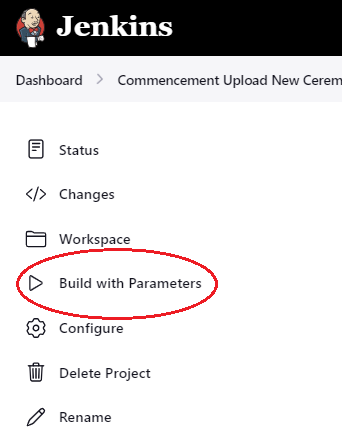
- Click on the “Build with Parameters” icon on the left-hand side of the job window.
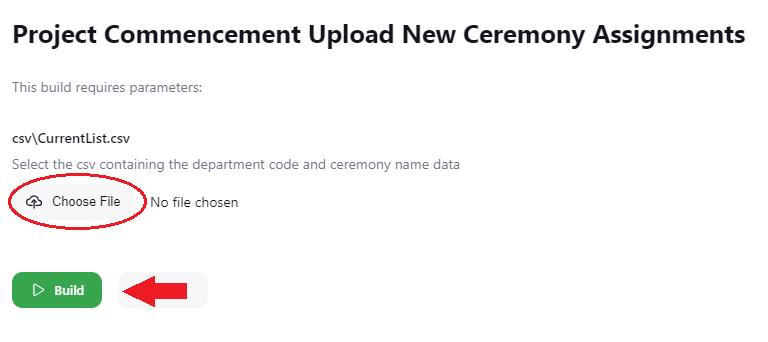
3. Upload the ceremony CSV by clicking on the “Choose File” button and selecting the file from your computer.
4. Click the blue “Build” button to run the job.
The job will run and should take 2 minutes or less to complete. In the Build History for the job (located in the bottom left of the job screen) you will see a green checkmark if the job ran successfully and a red X if it did not.
If there is a failure while running the job (a red X), an e-mail will automatically be sent to the person running the job with a description of what failed.
Once the upload is successful, The table will be set so the Watermark import process will move the courses that were in the file. If a mistake was made, simply update the csv and re-run the job with the new csv file.